How to Keep Work and Personal Accounts Separate on a Mac
Organize work and personal apps with WeDual workspaces. Learn how app and website clones keep separate sign-ins, where data stays, and how removing entries differs from deleting clones.
WeDual manages workspaces and clones locally on your Mac. Accounts, sign-in verification and access to services remain under the control of each app or website provider.
Understand workspaces, app clones and website clones
| What you need | What to use | Requirements |
|---|---|---|
| Launch your everyday tools together | Workspaces and original app entries | macOS 13.5+ |
| Sign in to different accounts in the same native app | App clones | macOS 13.5+ and the local component |
| Keep separate sign-in sessions for the same website | Website clones | macOS 14+ |
A regular website shortcut opens in your browser. Moving it to a different workspace does not create a separate sign-in session. Use a website clone when you need a separate website session. A workspace is not an operating-system security boundary or an access control mechanism.
Set up work and personal spaces
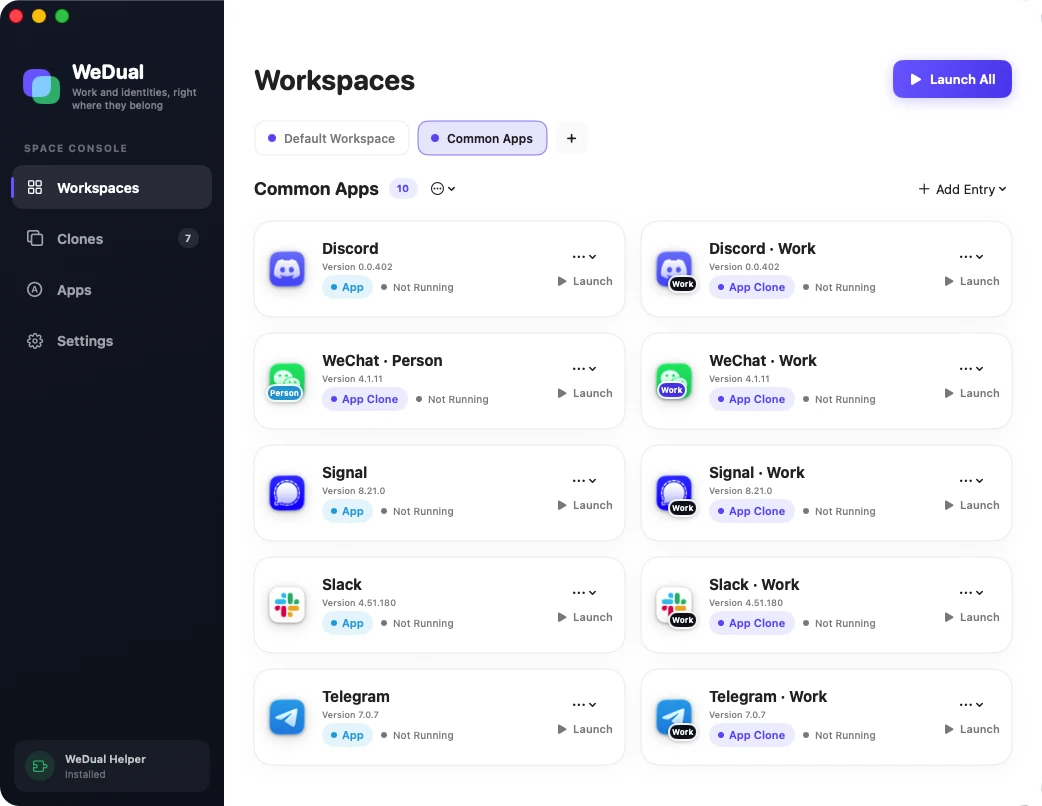
- In “Workspaces”, create “Work” and “Personal” spaces. Add the original apps and website shortcuts you use for each.
- If you need a second account in the same native app, first create an app clone in the Clone Library. Give it a “Work” or “Personal” name and badge, then add it to the appropriate workspace. For WeChat, see the WeChat multi-account guide.
- For separate website sign-ins, create a website clone in the Clone Library, enter its URL and name, and choose a workspace. Open each clone and sign in separately.
- Return to the workspace and check which account each entry uses. Choose “Launch All” in the upper-right corner to open the usual entries for that space. This does not bypass third-party sign-in requirements.
Use the same clone in more than one workspace
The Clone Library stores the actual clone profiles. Workspaces hold entries that point to those profiles. The same clone can belong to multiple workspaces without creating another copy of its account data. You can add notes to workspace entries to describe their purpose.
If you only want to tidy a workspace, remove the entry from that workspace. This does not delete the clone profile or its sign-in data. Deleting a clone from the Clone Library removes its profile and linked entries. Before deleting, make sure any account information and local data you need are safely backed up.
Website sign-ins and other devices
Each website clone uses its own local browser storage for website sessions. This data stays on the current Mac. Creating a workspace does not sync it to another Mac or merge it with accounts in your system browser. Websites may still ask you to verify your identity again or restrict simultaneous sign-ins.
Do not treat clones as access controls on a shared Mac. When working with confidential information, follow your organization’s requirements for devices, accounts and data management.
Checks before and after use
- Confirm that the native app or website allows your intended use. WeDual does not guarantee compatibility with every service.
- After creating a clone, check which account is active, especially before sending messages, uploading files or making payments.
- After an app update or a change to website sign-in behavior, check that the clone still works correctly.
- Read about data handling; if you need help, see Help or contact support.