How to Use Multiple WeChat Accounts on a Mac
Set up a WeChat clone on your Mac with WeDual. Follow the requirements, local component installation, clone creation and separate sign-in steps, with platform limits explained.
WeDual manages workspaces and clones locally on your Mac. Accounts, sign-in verification and access to services remain under the control of each app or website provider.
Before you start: check your system, accounts and platform rules
You need a Mac running macOS 13.5 or later, WeChat installed from an official source, and accounts you are authorized to use. App cloning in WeDual requires you to install the optional local component (Helper). You do not need it just to manage workspaces and regular website shortcuts.
WeChat versions and platform rules can affect how clones work. WeDual cannot guarantee that your accounts will be free of platform restrictions. Before you start, read the App Cloning Agreement and make sure your use follows the platform’s rules and your organization’s requirements.
Create a WeChat clone for a second account
- Choose Download for macOS on the official website, then install and open WeDual. When you need to create a native app clone, follow WeDual’s prompts to install or update the local component. Approve the macOS authorization prompts during installation.
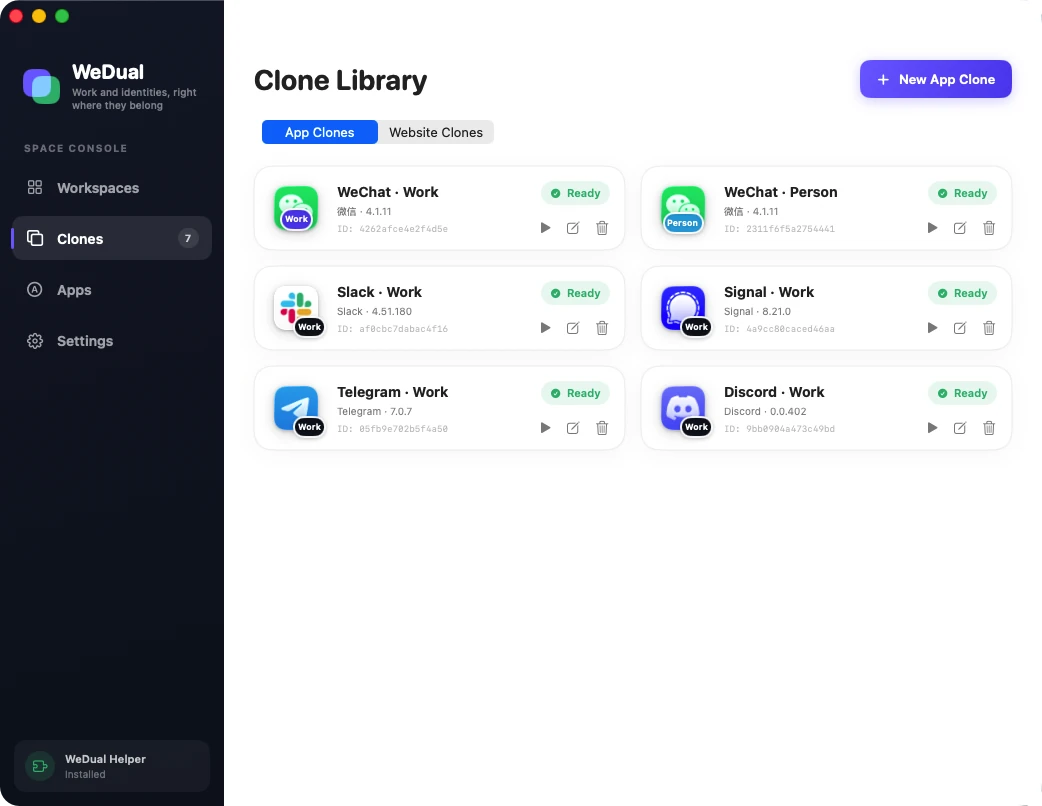
- Open “Clone Library”, choose “New App Clone”, and select the installed WeChat app in the app selection step.
- Give the clone a recognizable name, such as “WeChat · Work”, and choose a badge. You can add it to a workspace or keep it in the Clone Library for now.
- Review the app, name and settings, then create the clone. When it is ready, launch it from the Clone Library and sign in to another account using WeChat’s normal sign-in and verification process.
- Keep the original WeChat app for your original account. Check which account is active in each window before sending messages or files so that you use the intended account.
Everyday use and updates
Your clone is saved in the Clone Library. You can add it to a “Work” workspace and keep a separate entry for another account. Workspaces only organize entries: they do not create accounts, transfer chat history or automatically sync data between accounts.
After updating the original WeChat app, check that its clones still launch correctly. If needed, use WeDual’s clone update feature and follow its instructions. Do not overwrite the original app, move chat folders in bulk or assume that a clone will automatically inherit all of the original account’s data.
What if creating a clone or signing in fails?
- Creation failed: check that the source app is complete and the local component is installed and reachable. Read the specific error shown by WeDual.
- Launch failed: check the macOS and app version requirements. App updates may change compatibility.
- Verification requested or signed out: follow WeChat’s official verification process.
- Still having trouble? Use the feedback page to share your macOS, WeDual and WeChat versions and a description of the problem. Do not send passwords, verification codes or chat content.
Common questions
Do I need two copies of the original WeChat app?
No. These steps create a clone from the WeChat app already installed on your Mac. You do not need to replace the original with installers from different sources. Keep the original app and its data.